- Username: pmf@844cadence.com
-Password: CAdence@1045
When a ticket is created, I highly recommend logging into the portal, checking signal strength and connection, checking the operations tab to make sure there is no action processing and then rebooting the device. I would loop in the customers IT Vendor in on the initial ticket email to EpicIO as they will most likely need someone on-site to assist if remote changes do not fix the problem.
You can send reboot, config and firmware updates through this portal. It will also show signal strength, past operations, connected devices, and alarms in this portal.
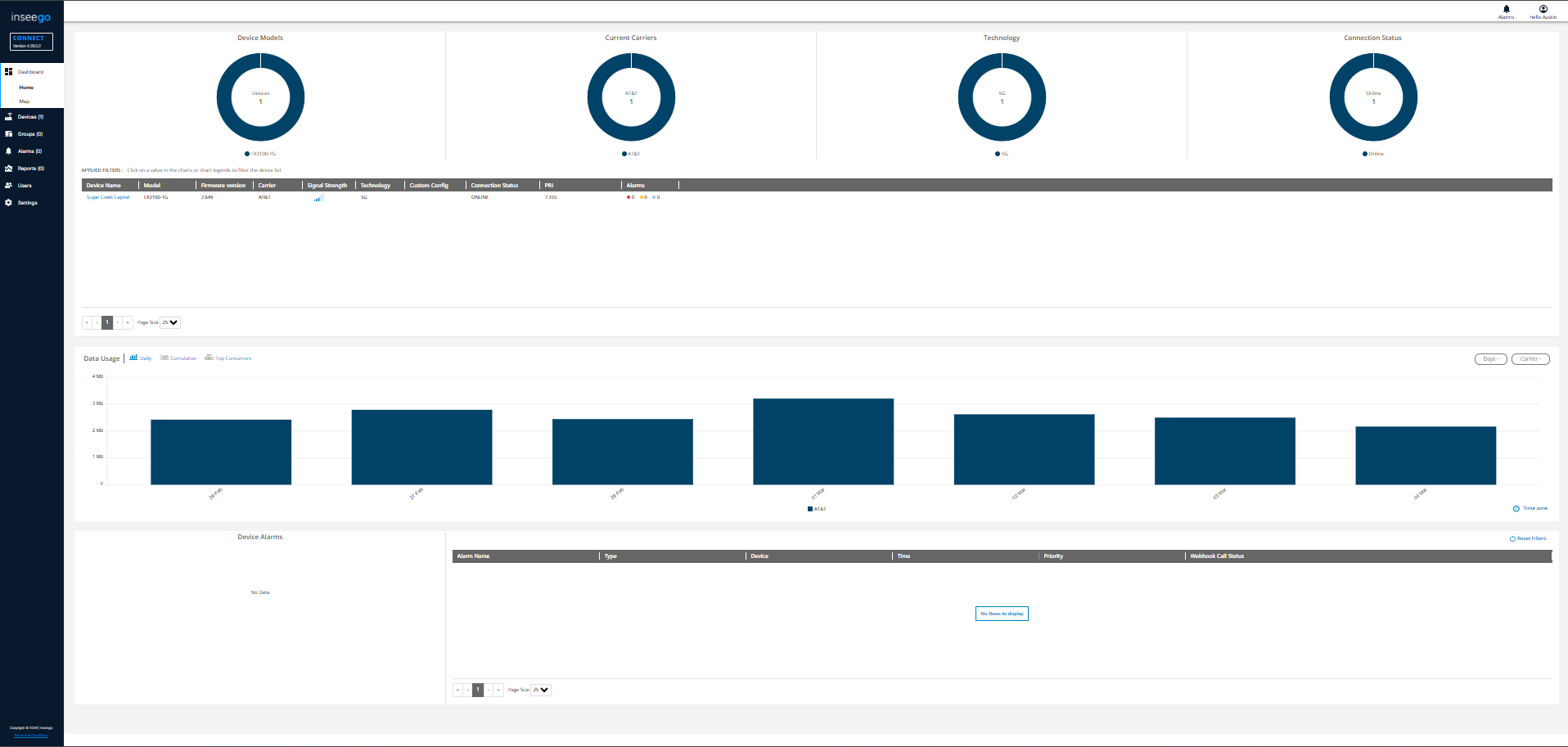
This is the main dashboard when you log into the Inseego Connect Portal
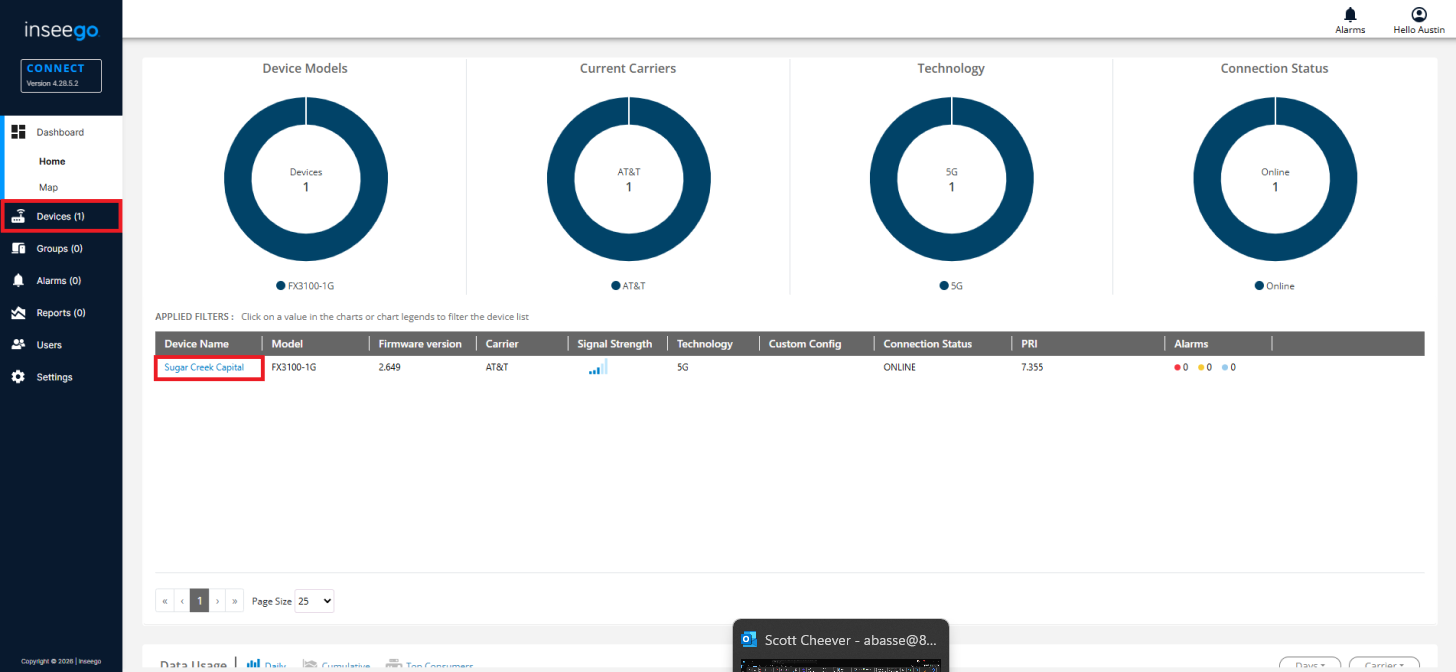
On the dashboard, you can access the device through clicking either sections boxed in red
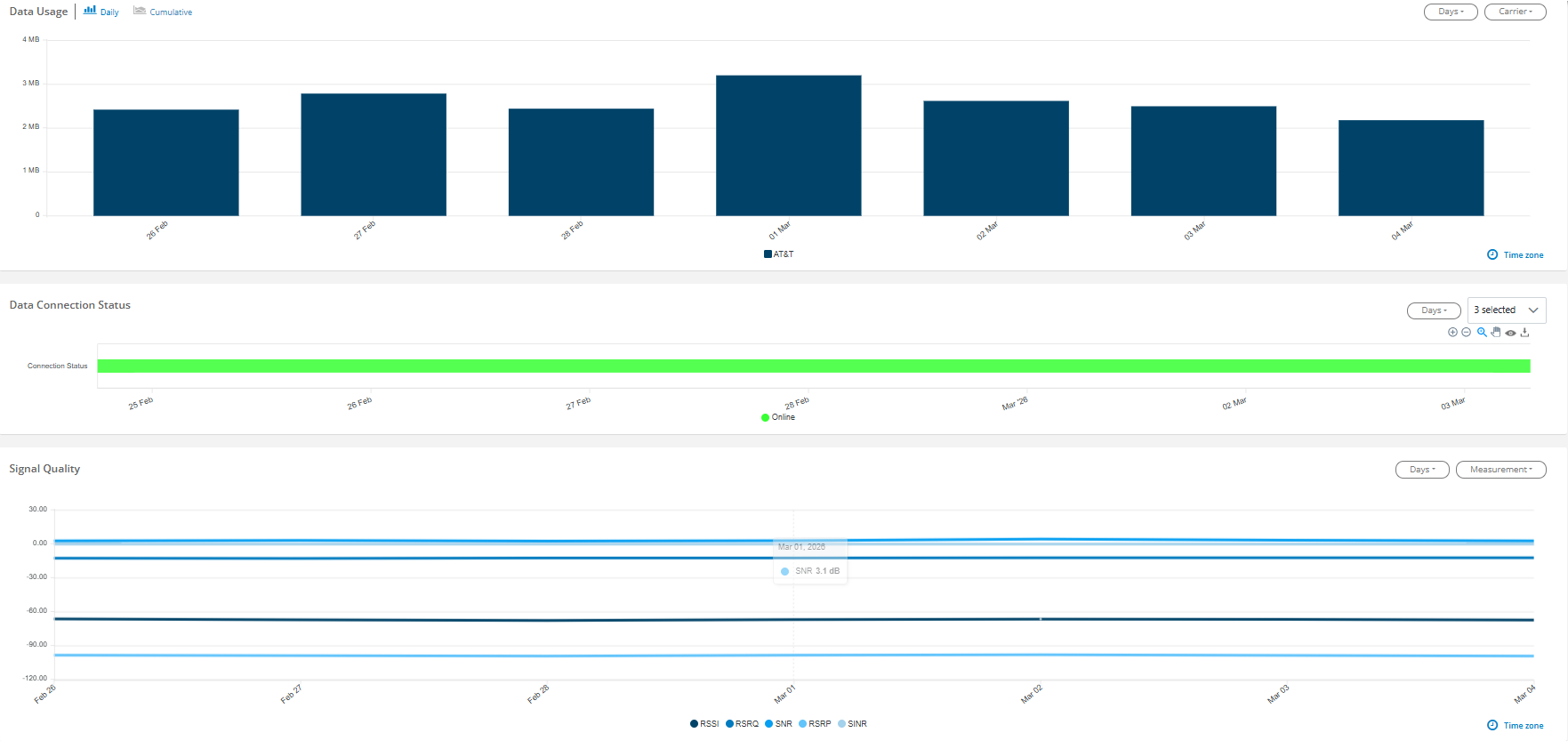
On the device page, you will see data usage, data connection status, and signal quality of the SIM cards in the device.
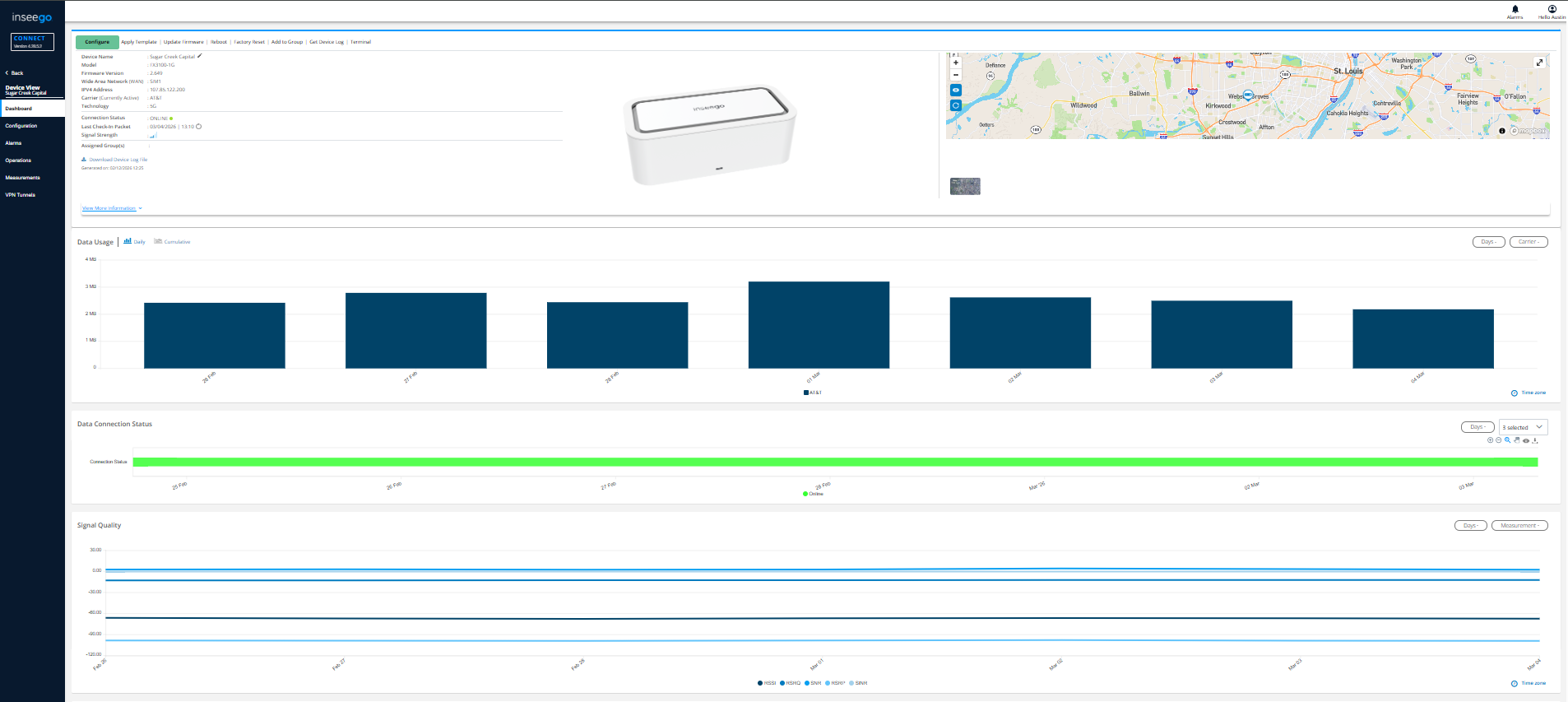
To make any changes to the device you will want to click the applicable change in the row with the configure button. The changes made can be either instanenous or take 30+ minutes to change. Make one change at a time before making another.
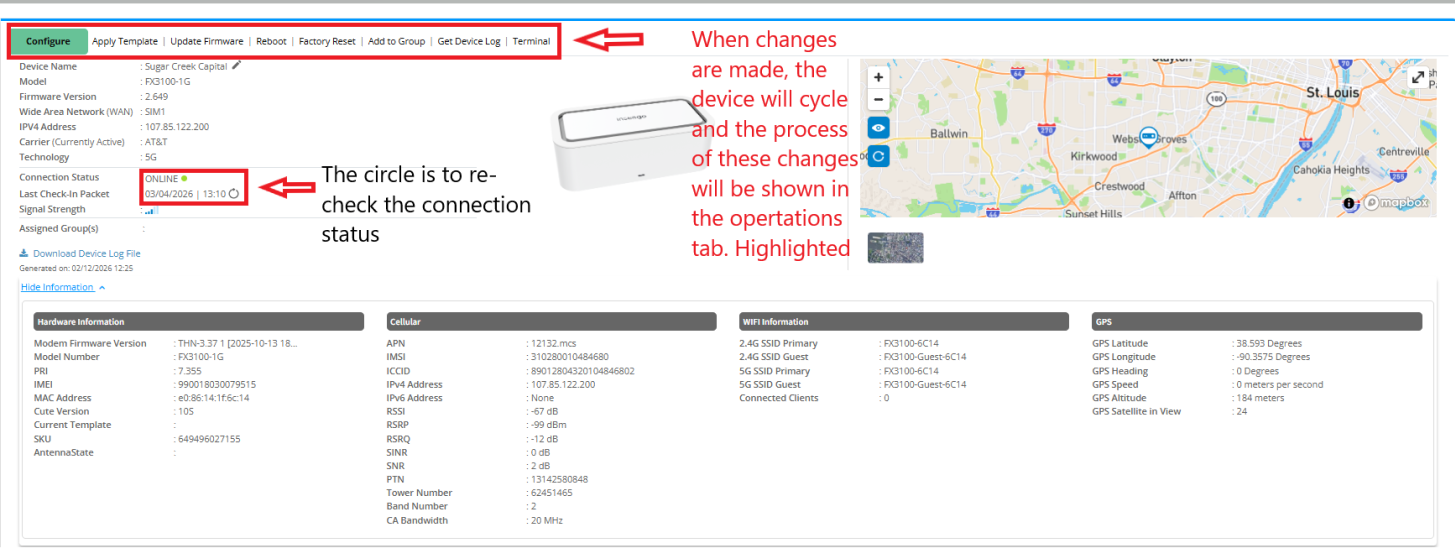
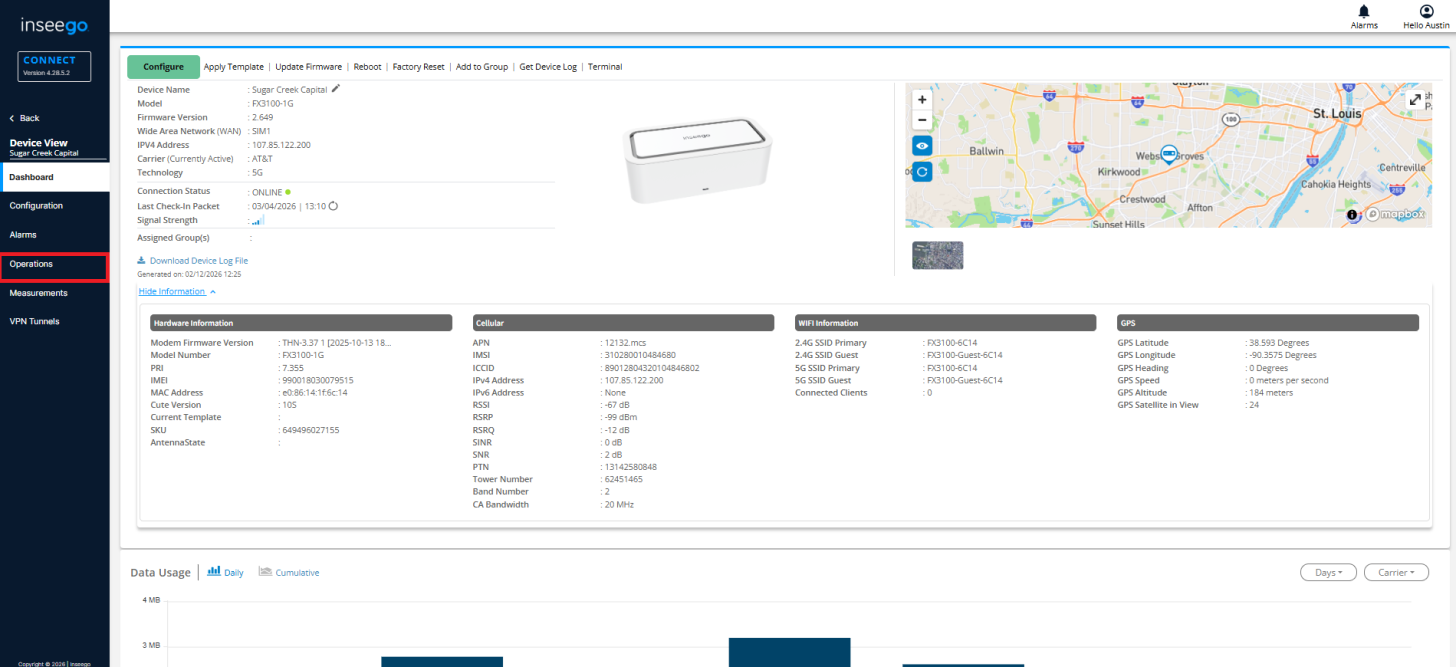
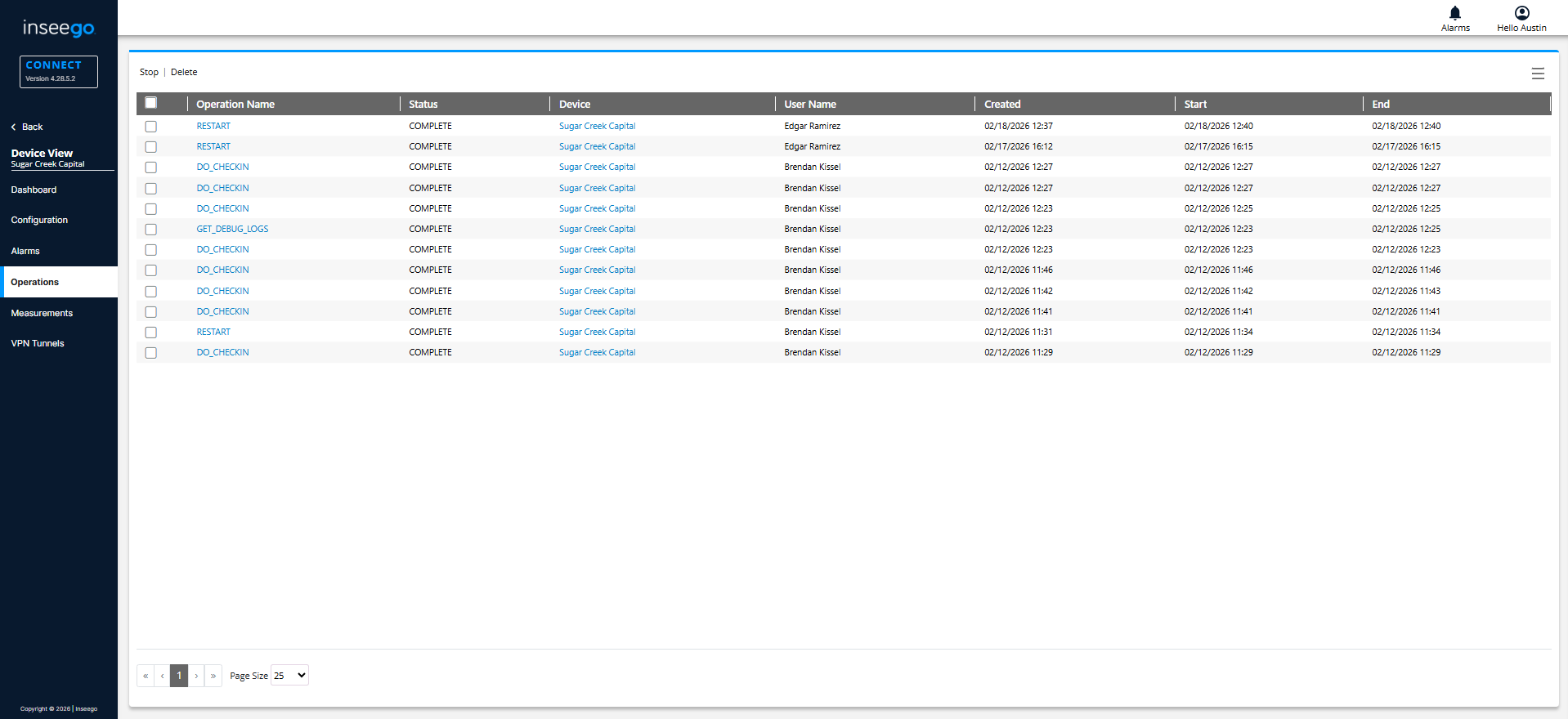
On the Operations page, you will see the status of any changes made. Once an End time is populated, the status will move to complete. DO NOT MAKE MORE THAN ONE CHANGE AT A TIME. Making multiple changes can lock up the device and make changes take extremely long.
Was this article helpful?
That’s Great!
Thank you for your feedback
Sorry! We couldn't be helpful
Thank you for your feedback
Feedback sent
We appreciate your effort and will try to fix the article